
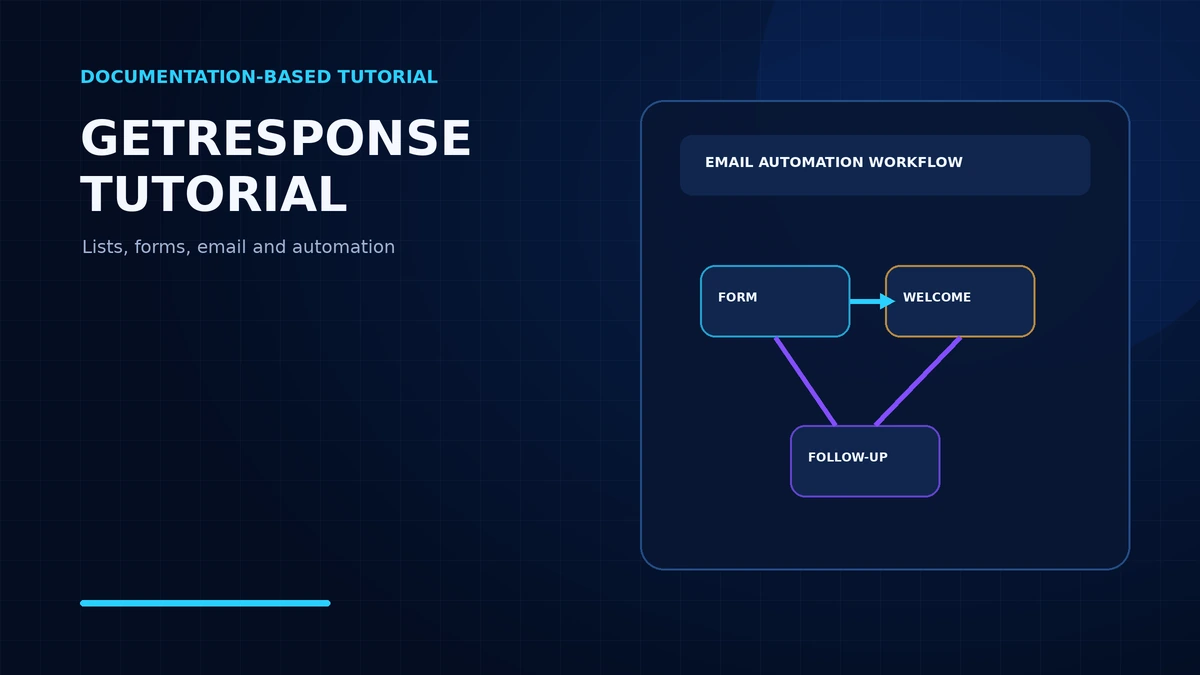
Many businesses spend time and money generating enquiries but do not follow up consistently. Email marketing automation can create a structured way to deliver a useful welcome message, provide a resource that a person requested and continue educating subscribers who have opted in.
GetResponse provides email marketing tools, lists, forms, autoresponders and plan-dependent automation workflows. The objective of this tutorial is not to build a complicated system. It is to document a simple, consent-based journey and show how to verify that each part works before launch.
Why follow-up needs a system
A follow-up system should make the subscriber’s next step clear. It should deliver what was promised, explain what will arrive later and provide an easy way to unsubscribe. Automation can make delivery consistent, but it does not remove the need for permission, useful content, accurate sender details or human support.
If you are comparing this setup with a broader strategy, read Expertron’s guides to AI email marketing automation for small business and AI marketing tools for small business.
The example campaign
Imagine a small business offering a free “Customer Follow-Up Checklist”. A visitor provides an email address and agrees to receive relevant content. The visitor receives the checklist, then two helpful tips, followed by an optional invitation to request a business assessment.
Map this journey before configuring the platform. Specify what the visitor is agreeing to receive, where that permission will be recorded and how confirmation and unsubscribe requests will be handled.
| Timing | Message | Purpose |
|---|---|---|
| Day 0 | Deliver the requested checklist | Fulfil the signup promise |
| Day 2 | Share one educational mistake to avoid | Help the subscriber make progress |
| Day 4 | Explain a practical process for handling enquiries | Provide another useful step |
| Day 7 | Invite the subscriber to request help if relevant | Offer an optional next action |
These timings are illustrative. They are not GetResponse defaults. Add only the delays and conditions supported by the selected plan, and stop communication when a person unsubscribes.
Step 1: Review your GetResponse account
Visit the official GetResponse website, then sign in or create an account. Review the current plan entitlements before building the campaign. Check:
- contact capacity;
- autoresponder access;
- available marketing automation features;
- sender authentication requirements;
- the sender and reply-to details that recipients will see.
Provide accurate sender and reply-to details. Do not represent Expertron as a GetResponse affiliate or partner while the application is pending.
Step 2: Create a list
In list management, create a clearly named audience, such as “Business Growth Updates”. Check the subscription settings and any confirmation requirements that apply to the list.
Do not buy or scrape addresses. Record the source and scope of each person’s permission to receive messages. A contact’s presence in a spreadsheet or database does not, by itself, establish permission for marketing email.
Step 3: Build a signup form
Use the current form and popup tools or an approved integration. Ask only for necessary details, such as a first name and email address. The form should:
- explain what the visitor will receive;
- include an appropriate privacy notice;
- respect applicable confirmation and consent requirements;
- remain readable on mobile screens.
A clear form makes it easier to understand the permission being granted and reduces unnecessary data collection.
Step 4: Connect the form to the website
Use a supported embed or WordPress connection option, and select the correct list. Then submit a test signup from a logged-out browser. Complete any required confirmation and verify that the resulting contact appears in the expected list.
Step 5: Draft the welcome email
A documented first message for the example campaign could use the subject line “Your Customer Follow-Up Checklist Is Ready”. The body can say:
Thank you for requesting the checklist. Begin by identifying which team member owns each new enquiry. Here is your download link: [verified resource URL]. We will share two additional practical tips. You can unsubscribe at any time.
Replace the placeholder with a verified resource URL. Add the truthful sender identity and required unsubscribe information before sending.
Step 6: Configure delivery
A basic autoresponder may be sufficient for simple welcome timing. If the subscription includes marketing automation, the documented setup is to create an automation message, choose a welcome workflow template or blank workflow, apply a subscription trigger for the selected list and connect that trigger to a send-message action.
Confirm the available controls and conditions against GetResponse’s current help instructions before activation. Do not assume that a feature shown in another account or an older tutorial is included in the selected plan.
Step 7: Plan follow-up with restraint
Use the illustrative sequence above as a planning framework: deliver the requested resource on day 0, send one educational tip on day 2, explain a practical enquiry-handling process on day 4 and offer an optional invitation to request help on day 7.
These are proposed timings rather than platform defaults. Keep each message relevant to the permission given at signup. Add the necessary plan-supported delays and conditions, and ensure that people who unsubscribe do not continue through the sequence.
Step 8: Complete end-to-end testing
Test the full journey with an email address you control. Document a pass or fail for each of the following:
- contact creation in the intended list;
- any required confirmation step;
- welcome email delivery;
- accurate sender and reply-to names;
- working download links;
- accurate segmentation;
- the unsubscribe flow;
- later message timing;
- mobile formatting;
- spam placement.
Do not claim a successful test because a form appeared to submit. Success requires evidence that the contact was created and that the expected messages and controls worked.
Step 9: Measure performance
After launch, watch new subscribers, deliveries, click-throughs, complaints, unsubscribes and relevant enquiries or purchases. Open tracking may be unreliable because privacy technologies can affect it, so do not treat opens as the only measure of success.
Improve the usefulness and clarity of the messages before increasing frequency. Never send sensitive or unsolicited emails simply to inflate a marketing list.
Autoresponders versus conditional workflows
| Option | Appropriate use | Important constraint |
|---|---|---|
| Autoresponder | Simple, time-based welcome messages | Use the timing and features available in the current plan |
| Marketing automation workflow | Trigger-driven and conditional journeys | Availability depends on the selected plan |
Most beginners should make one simple welcome message work reliably before building complex branching. Complexity is useful only when the underlying signup, consent, delivery and unsubscribe controls already work.
Troubleshooting common GetResponse setup problems
The form connects to the wrong list
Return to the supported embed, WordPress connection or approved integration and confirm the selected list. Submit another controlled test and check the destination list directly.
The test contact does not appear
Repeat the signup in a logged-out browser, complete any required confirmation and verify the contact record. Do not rely on the form’s success message as proof.
The welcome email does not arrive
Check that the contact was created, any confirmation was completed, the correct subscription trigger is connected to the send-message action and the sender details meet current requirements. Inspect spam placement as part of the test.
The resource link is broken
Replace the placeholder with a verified resource URL, then test the link from the delivered email on both desktop and mobile.
The sequence continues after unsubscription
Review the unsubscribe flow and the workflow conditions. Stop communication when a person unsubscribes, then repeat the controlled test and document the result.
Other common pitfalls include omitting consent, failing to test confirmation, using an unverified sender identity and sending too many sales emails. Keep a human contact method available: automation does not replace service when a customer has a specific question.
How Expertron supports implementation
Expertron helps clients assess needs, define journeys, design forms and messages, configure suitable platforms, test integrations and hand over documentation. Its Discover, Define, Design, Develop, Deploy, Deliver process applies to implementation services.
This is independent client consulting. It does not imply that GetResponse has approved Expertron as an affiliate or partner. Learn more about Expertron’s digital content, smart website, social media, AI and automation consulting, and client implementation services at expertronhq.com.
FAQ
Does GetResponse send welcome messages?
Yes, using relevant autoresponder or automation features. Review the features included in the current plan and follow GetResponse’s current instructions before activation.
Do I need code?
Many workflows have visual interfaces. Use a supported embed, WordPress connection or approved integration for the signup form, then test the complete journey.
Will a WordPress form work automatically?
No integration should be assumed to work automatically. Connect the form to the intended list, complete a test signup in a logged-out browser and verify that the contact is stored in the correct place.
Does every plan include advanced automation?
No. Review current plan entitlements, including autoresponder access and automation features, before designing the campaign.
When should I go live?
Go live only after a fully documented, consent-based signup and a successful end-to-end test covering confirmation, delivery, links, segmentation, unsubscribe behaviour and later message timing.
Final checklist
- Verify product claims, plan terms and instructions against GetResponse’s current official pages.
- Use only contacts who provided appropriate permission.
- Confirm the form sends contacts to the intended list.
- Use accurate sender and reply-to details.
- Replace the sample resource placeholder with a verified URL.
- Test confirmation, delivery, links, segmentation, unsubscribe behaviour and timing.
- Check mobile formatting and spam placement.
- Document pass and fail results.
- Do not add a GetResponse referral link unless approval is received.
- Do not label screenshots or steps as hands-on tested unless they have actually been verified.